
Introduction
A Lighthouse score is not a vanity metric.
It is a direct measurement of how your users experience your product. Every point below 90 on mobile is a visitor who waited too long, a page that shifted unexpectedly, or an interaction that felt sluggish. Every one of those moments costs you — in bounce rate, in conversions, in search ranking, and in the trust a visitor places in a business before they walk through the door.
I optimize every project I build at Dywan Dev to score above 90 on Lighthouse across Performance, Accessibility, Best Practices, and SEO. Not because clients ask for it — most do not know what Lighthouse is. But because the consequences of ignoring it are real and measurable, and because delivering a fast, accessible, well-structured web product is a professional standard I hold myself to regardless of whether the client can audit it.
This guide documents exactly how I do it. Not theory. Not generic advice you have read a hundred times. The specific decisions, configurations, and patterns I apply to every React project before it ships.
1. Understand What Lighthouse Actually Measures
Before optimizing, understand what you are optimizing for.
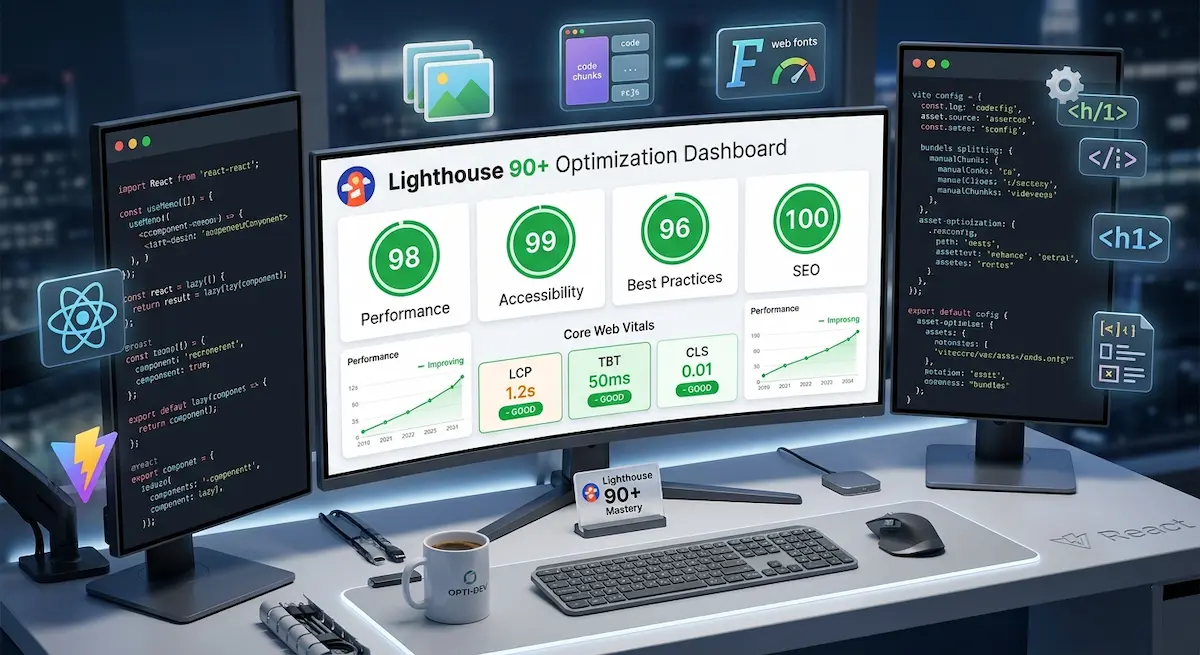
Lighthouse measures five categories. Each matters differently depending on your project type.
Performance measures how fast your page loads and becomes usable. It is calculated from five Core Web Vitals metrics with specific weightings.
Accessibility measures how usable your site is for people with disabilities — screen readers, keyboard navigation, color contrast, semantic HTML.
Best Practices measures code quality signals — HTTPS, no deprecated APIs, no console errors, correct image aspect ratios.
SEO measures how well search engines can crawl and understand your content — meta tags, structured data, mobile friendliness, crawlability.
PWA measures whether your application meets Progressive Web App requirements.
The five Core Web Vitals that determine your Performance score are:
LCP — Largest Contentful Paint (weighted 25%) — how long until the largest visible element renders. Target: under 2.5 seconds.
TBT — Total Blocking Time (weighted 30%) — how long the main thread is blocked during load, preventing user interaction. Target: under 200 milliseconds.
CLS — Cumulative Layout Shift (weighted 15%) — how much the page layout shifts unexpectedly during load. Target: under 0.1.
FCP — First Contentful Paint (weighted 10%) — how long until any content renders. Target: under 1.8 seconds.
SI — Speed Index (weighted 10%) — how quickly content is visually populated. Target: under 3.4 seconds.
TBT has the highest weight. This means JavaScript execution time is the single biggest lever in your Performance score. Every optimization decision should be evaluated against its impact on main thread blocking time first.
2. The Audit Workflow
Before optimizing anything, establish a reliable audit baseline.
Never audit in development mode. Vite's development server does not apply production optimizations. Always audit against a production build:
npm run build
npm run preview
Then audit with Lighthouse in Chrome DevTools on the preview server. Use incognito mode to eliminate extension interference. Run the audit three times and take the median score — Lighthouse results vary between runs due to CPU and network simulation variance.
For ongoing monitoring, add the Lighthouse CI package to your project:
npm install -D @lhci/cliConfigure it in lighthouserc.js:
module.exports = {
  ci: {
    collect: {
      staticDistDir: './dist',
      numberOfRuns: 3
    },
    assert: {
      assertions: {
        'categories:performance': ['error', { minScore: 0.9 }],
        'categories:accessibility': ['error', { minScore: 0.9 }],
        'categories:best-practices': ['error', { minScore: 0.9 }],
        'categories:seo': ['error', { minScore: 0.9 }]
      }
    }
  }
};
Add it to your GitHub Actions workflow and your build fails automatically if any score drops below 90. Performance regressions get caught before they reach production.
3. JavaScript Bundle Optimization — The Highest Impact Change
TBT is the highest-weighted metric. TBT is caused by large JavaScript bundles blocking the main thread during parse and execution. Reducing bundle size is the single highest-impact optimization available in a React project.
Analyze your bundle before optimizing it.
Install the Rollup plugin visualizer:
npm install -D rollup-plugin-visualizerAdd it to vite.config.js:
import { visualizer } from 'rollup-plugin-visualizer';

export default defineConfig({
  plugins: [
    react(),
    visualizer({
      open: true,
      gzipSize: true,
      brotliSize: true,
      filename: 'dist/bundle-analysis.html'
    })
  ]
});
Run npm run build. The visualizer opens a treemap showing exactly which modules are taking up space.
Apply manual chunk splitting.
export default defineConfig({
  build: {
    rollupOptions: {
      output: {
        manualChunks: {
          'react-vendor': ['react', 'react-dom'],
          'router': ['react-router-dom'],
          'animation': ['framer-motion'],
          'i18n': ['i18next', 'react-i18next'],
          'ui': ['@headlessui/react']
        }
      }
    }
  }
});
Replace heavy libraries with lighter alternatives.
// Before — imports entire lodash (70kb+)
import _ from 'lodash';
const debounced = _.debounce(fn, 300);

// After — imports one function (1kb)
import debounce from 'lodash/debounce';
const debounced = debounce(fn, 300);
4. Route-Based Code Splitting
Every page in your React application should be a separate chunk that loads only when the user navigates to it.
import { lazy, Suspense } from 'react';
import { Routes, Route } from 'react-router-dom';

const Home = lazy(() => import('./pages/Home'));
const Menu = lazy(() => import('./pages/Menu'));
const About = lazy(() => import('./pages/About'));
const Contact = lazy(() => import('./pages/Contact'));
const Gallery = lazy(() => import('./pages/Gallery'));

const PageLoader = () => (
  <div className="page-loader">
    <div className="loader-spinner" />
  </div>
);

export const AppRoutes = () => (
  <Suspense fallback={<PageLoader />}>
    <Routes>
      <Route path="/" element={<Home />} />
      <Route path="/menu" element={<Menu />} />
      <Route path="/about" element={<About />} />
      <Route path="/contact" element={<Contact />} />
      <Route path="/gallery" element={<Gallery />} />
    </Routes>
  </Suspense>
);
5. Image Optimization — The LCP Factor
LCP is almost always determined by your hero image.
Convert to WebP and AVIF.
npm install -D vite-imagetoolsimport { imagetools } from 'vite-imagetools';
export default defineConfig({
plugins: [
react(),
imagetools()
]
});Implement responsive images with srcset.
export const ResponsiveHero = ({ src, alt }) => (
  <picture>
    <source media="(max-width: 768px)" srcSet={`${src}?w=768&format=avif 768w`} type="image/avif" />
    <source media="(max-width: 768px)" srcSet={`${src}?w=768&format=webp 768w`} type="image/webp" />
    <source media="(min-width: 769px)" srcSet={`${src}?w=1920&format=avif 1920w`} type="image/avif" />
    <source media="(min-width: 769px)" srcSet={`${src}?w=1920&format=webp 1920w`} type="image/webp" />
    <img
      src={`${src}?w=1200&format=jpg`}
      alt={alt}
      width="1920"
      height="1080"
      loading="eager"
      fetchpriority="high"
    />
  </picture>
);
<link
rel="preload"
as="image"
href="/assets/hero.webp"
imagesrcset="/assets/hero-768.webp 768w, /assets/hero-1920.webp 1920w"
imagesizes="100vw"
/>Set explicit dimensions on all images and lazy-load below-fold assets.
6. Font Optimization
<link rel="preconnect" href="https://fonts.googleapis.com" />
<link rel="preconnect" href="https://fonts.gstatic.com" crossorigin />
@import url('https://fonts.googleapis.com/css2?family=Playfair+Display:wght@300;400;700&display=swap');@font-face {
font-family: 'Playfair Display Fallback';
src: local('Georgia');
size-adjust: 97%;
ascent-override: 95%;
descent-override: normal;
line-gap-override: normal;
}
.font-heading {
font-family: 'Playfair Display', 'Playfair Display Fallback', Georgia, serif;
}npm install -D vite-plugin-webfont-dl7. Eliminating Cumulative Layout Shift
The most common sources of CLS in React projects are images without dimensions, dynamic insertion, web fonts, embeds without dimensions, and layout-affecting animations.
.cookie-banner {
  min-height: 60px;
  position: fixed;
  bottom: 0;
  width: 100%;
}
// Causes CLS — animates layout properties
const badVariant = {
hidden: { height: 0, marginTop: 0 },
visible: { height: 'auto', marginTop: 16 }
};
// Correct — animates transform and opacity only
const goodVariant = {
hidden: { opacity: 0, y: 20 },
visible: { opacity: 1, y: 0 }
};8. Accessibility — The Score Most Developers Ignore
A Lighthouse accessibility score below 90 is not just a metric problem. It means real people with disabilities cannot use your product.
// Wrong
<img src={logo} />

// Correct — descriptive for meaningful images
<img src={heroImage} alt="Chef preparing signature dish at Le Jardin restaurant" />

// Correct — empty for decorative images
<img src={decorativeLine} alt="" role="presentation" />
// Wrong
<input type="email" placeholder="Your email" />
// Correct
<label htmlFor="email">Email address</label>
<input id="email" type="email" placeholder="your@email.com" aria-required="true" />// Wrong
<button onClick={openMenu}>
<MenuIcon />
</button>
// Correct
<button onClick={openMenu} aria-label="Open navigation menu">
<MenuIcon aria-hidden="true" />
</button>export const SkipLink = () => (
<a
href="#main-content"
className="skip-link sr-only focus:not-sr-only focus:fixed focus:top-4 focus:left-4 focus:z-50 focus:px-4 focus:py-2 focus:bg-primary focus:text-white"
>
Skip to main content
</a>
);9. SEO Optimization in React
For projects where full server-side rendering is not feasible, prerendering specific routes at build time provides most SEO benefit.
npm install -D vite-plugin-ssrimport { useEffect } from 'react';
export const SEO = ({ title, description, image, url, type = 'website' }) => {
useEffect(() => {
document.title = title;
// ...meta updates...
}, [title, description, image, url, type]);
return null;
};<SEO
title="Le Jardin — Fine Dining Restaurant in Casablanca"
description="Award-winning cuisine in an intimate setting. Reserve your table for an unforgettable evening."
image="https://lejardin.ma/og-image.jpg"
url="https://lejardin.ma"
/>10. The Pre-Ship Checklist
Every project I build at Dywan Dev goes through this checklist before deployment:
- Bundle analyzed with visualizer; no unexpected large dependencies
- Hero image preloaded with high fetch priority
- All images sized explicitly and loaded correctly
- Route-based code splitting and manual chunking configured
- Fonts optimized with swap and preconnect hints
- Accessibility checks complete (labels, alt text, contrast, keyboard, ARIA, skip link)
- SEO checks complete (meta, OG/Twitter, structured data, canonical, robots, sitemap)
- Best practices validated (no production console errors, HTTPS, no deprecated APIs)
- Three Lighthouse runs on production build; median scores above 90
Conclusion
A Lighthouse score above 90 is not an accident. It is the result of specific decisions made consistently across every layer of a project — bundle architecture, image handling, font loading, accessibility semantics, and SEO structure.
None of these optimizations are individually complex. The discipline is in applying all of them to every project, treating performance and accessibility as design constraints rather than finishing touches.
The businesses and developers who hire you expect a website that works. A Lighthouse score above 90 is measurable proof that it does — faster, more accessible, and more discoverable than the majority of competing web products.
That proof is what separates a developer who ships things from a developer who ships things that perform.
Every project built at Dywan Dev targets Lighthouse 90+ across all categories by default. Performance, accessibility, and SEO are not add-ons — they are standards. If you need a web product built to these standards, let's build it together.