
Introduction
Most websites load. A PWA survives.
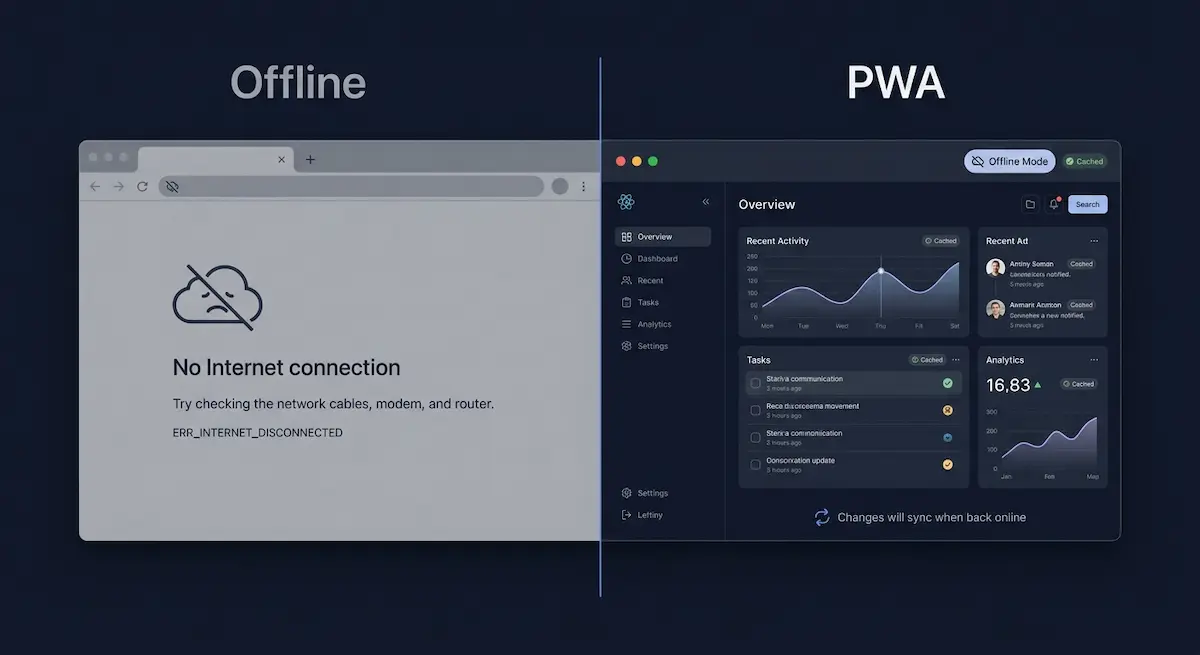
When a user loses their internet connection, a regular React app shows a blank screen or an error. A Progressive Web App keeps working — serving cached pages, preserving the experience, and syncing when the connection returns.
Adding PWA support to a React Vite app is one of the highest-value improvements you can make for performance, user retention, and Lighthouse scores. This guide shows you exactly how I implemented it in Dywan Dev and Savoura Dywan — including the install prompt, offline page, and update notification that most tutorials skip.
What Is a PWA and Why Does It Matter
A Progressive Web App is a web application that behaves like a native app. It can be installed on a user's device, works offline, loads instantly on repeat visits, and sends push notifications.
For businesses, this means lower bounce rates and higher engagement. For developers, it means better Lighthouse scores and a stronger product offering. For you as a freelancer or template seller — it's a feature clients will pay more for.
The three core requirements of a PWA are a web manifest, a service worker, and HTTPS. Vite makes all three straightforward with one plugin.
1. Install the Vite PWA Plugin
npm install -D vite-plugin-pwaThis plugin handles service worker generation and manifest injection automatically. It uses Workbox under the hood — the same library Google uses for PWA tooling.
2. Configure the Plugin in vite.config.js
import { defineConfig } from 'vite';
import react from '@vitejs/plugin-react';
import { VitePWA } from 'vite-plugin-pwa';

export default defineConfig({
  plugins: [
    react(),
    VitePWA({
      registerType: 'autoUpdate',
      includeAssets: ['favicon.ico', 'apple-touch-icon.png', 'mask-icon.svg'],
      manifest: {
        name: 'Dywan Dev',
        short_name: 'DywanDev',
        description: 'Modern web templates and fullstack solutions',
        theme_color: '#0f172a',
        background_color: '#0f172a',
        display: 'standalone',
        scope: '/',
        start_url: '/',
        icons: [
          {
            src: 'pwa-192x192.png',
            sizes: '192x192',
            type: 'image/png'
          },
          {
            src: 'pwa-512x512.png',
            sizes: '512x512',
            type: 'image/png'
          },
          {
            src: 'pwa-512x512.png',
            sizes: '512x512',
            type: 'image/png',
            purpose: 'any maskable'
          }
        ]
      },
      workbox: {
        globPatterns: ['**/*.{js,css,html,ico,png,svg,woff2}'],
        runtimeCaching: [
          {
            urlPattern: /^https:\/\/fonts\.googleapis\.com\/.*/i,
            handler: 'CacheFirst',
            options: {
              cacheName: 'google-fonts-cache',
              expiration: {
                maxEntries: 10,
                maxAgeSeconds: 60 * 60 * 24 * 365
              }
            }
          }
        ]
      }
    })
  ]
});
Replace the name, description, and theme color with your own branding. The icons need to exist in your public/ folder — generate them from your logo using a tool like PWA Asset Generator.
3. Create an Offline Fallback Page
This is what separates a real PWA from a basic service worker setup. When a user has no internet, show them something useful instead of a browser error.
Create public/offline.html:
<!DOCTYPE html>
<html lang="en">
<head>
  <meta charset="UTF-8" />
  <meta name="viewport" content="width=device-width, initial-scale=1.0"/>
  <title>You're Offline</title>
  <style>
    body {
      font-family: sans-serif;
      display: flex;
      flex-direction: column;
      align-items: center;
      justify-content: center;
      height: 100vh;
      margin: 0;
      background: #0f172a;
      color: #f8fafc;
      text-align: center;
      padding: 2rem;
    }
    h1 { font-size: 2rem; margin-bottom: 1rem; }
    p { color: #94a3b8; max-width: 400px; }
  </style>
</head>
<body>
  <h1>You're offline</h1>
  <p>It looks like you lost your connection. The page you're looking for will be available once you're back online.</p>
</body>
</html>
Then reference it in your Workbox config inside vite.config.js (add navigateFallback alongside your existing globPatterns):
workbox: {
  navigateFallback: '/offline.html',
  globPatterns: ['**/*.{js,css,html,ico,png,svg,woff2}']
}
4. Add an Install Prompt
Browsers show a native install prompt automatically — but you can intercept it and show your own UI at the right moment. This dramatically increases install rates.
Create src/hooks/usePWAInstall.js:
import { useState, useEffect } from 'react';

export const usePWAInstall = () => {
  const [installPrompt, setInstallPrompt] = useState(null);
  const [isInstallable, setIsInstallable] = useState(false);

  useEffect(() => {
    const handler = (e) => {
      e.preventDefault();
      setInstallPrompt(e);
      setIsInstallable(true);
    };

    window.addEventListener('beforeinstallprompt', handler);
    return () => window.removeEventListener('beforeinstallprompt', handler);
  }, []);

  const install = async () => {
    if (!installPrompt) return;
    await installPrompt.prompt();
    const { outcome } = await installPrompt.userChoice;
    if (outcome === 'accepted') setIsInstallable(false);
    setInstallPrompt(null);
  };

  return { isInstallable, install };
};
Use it in any component:
import { usePWAInstall } from './hooks/usePWAInstall';

export const InstallButton = () => {
  const { isInstallable, install } = usePWAInstall();

  if (!isInstallable) return null;

  return (
    <button onClick={install} className="install-btn">
      Install App
    </button>
  );
};
Place this button in your navbar or hero section. It only appears when the browser determines the app is installable — so it never shows unnecessarily.
5. Add an Update Notification
When you deploy a new version, users with the old service worker cached won't see your changes automatically. Show them a notification so they can refresh and get the latest version.
Update src/main.jsx:
import { registerSW } from 'virtual:pwa-register';

const updateSW = registerSW({
  onNeedRefresh() {
    const confirmed = window.confirm(
      'A new version is available. Reload to update?'
    );
    if (confirmed) updateSW(true);
  },
  onOfflineReady() {
    console.log('App is ready to work offline');
  }
});
For a more polished experience, replace the window.confirm with a custom toast notification using your existing UI components.
6. Verify It Works
Run your build and preview it locally:
npm run build
npm run preview
Then open Chrome DevTools → Application → Service Workers. You should see your service worker registered and active. Check the Manifest tab to verify your icons and metadata are loading correctly.
Run a Lighthouse audit. A properly configured PWA should score in the green across Performance, Accessibility, and PWA categories.
Conclusion
PWA support is one of those features that costs a few hours to implement and pays back continuously — in Lighthouse scores, user retention, and client perception. When you tell a client their website works offline and can be installed on a phone like a native app, that's a conversation closer.
Every template I build at Dywan Dev ships with PWA support by default. It's not an extra — it's a standard.
Building a restaurant, portfolio, or business website? Dywan Dev templates come PWA-ready, multilingual, and optimized out of the box. Explore the templates.